Kitchen Display System Singapore: KDS vs Kitchen Printers, Costs and a Rush-Hour Test
Choose a kitchen display system by testing how orders reach each station, how staff mark work complete and what happens when the connection fails. Compare it with kitchen printers using the same menu and rush-hour orders. The right choice depends on your preparation workflow, device placement, support and complete installed cost.
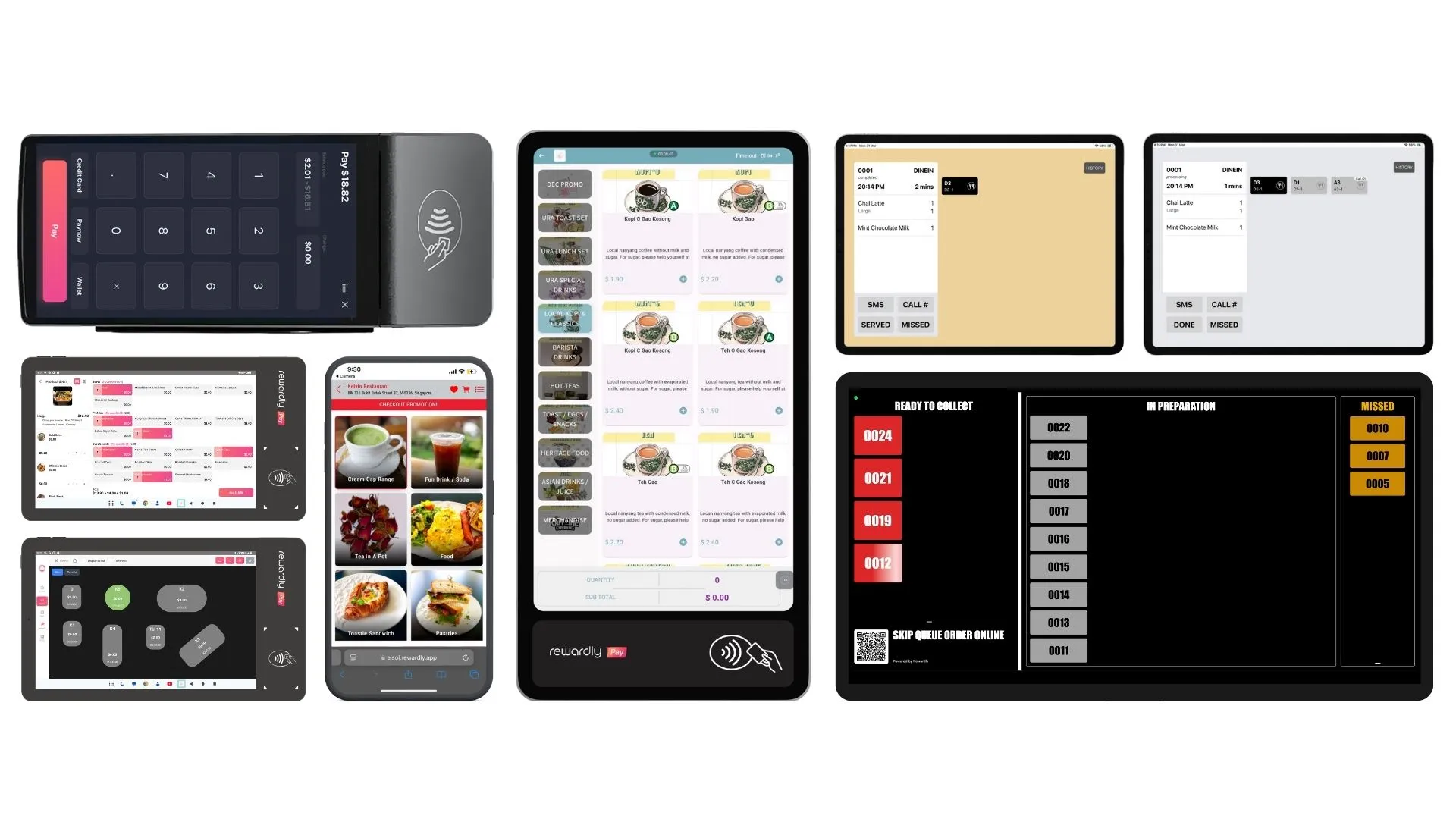
Three displays, three different jobs
A kitchen display system, or KDS, shows preparation work to kitchen staff. A kitchen printer produces physical tickets. A customer collection board tells guests which order is preparing or ready. A screen facing customers does not replace the staff’s preparation view.
Begin with the operational problem: lost chits, overlooked modifiers, duplicate preparation or drinks waiting for food. Count examples from recent shifts. If the real issue is unclear responsibility, buying another screen will not settle who checks the complete order before handover.
Rewardly’s KDS setup documentation distinguishes kitchen, pickup and waiter displays and describes category or tag filters for station work. It limits kitchen displays to Quick Service and Full Service outlet types, rather than Retail. Confirm your outlet configuration before selecting hardware.
KDS versus kitchen printers: compare the workflow
Paper can provide a physical work queue, but staff still need a consistent way to sequence tickets, communicate changes and avoid duplicate copies. A display can make preparation status visible, provided the configured workflow, connection and staff actions support it.
| Decision | Display test | Printer test |
|---|---|---|
| New work | Visibility and station filtering | Correct destination and readable chit |
| Changed order | Modifier and cancellation behaviour | Clear change ticket and original matching |
| Completion | Item status versus whole order | Named owner and physical ticket movement |
| Failure | Connection warning and recovery | Paper, power and connection recovery |
A combined setup may suit a kitchen that wants screens plus selected paper tickets. Ask whether both outputs are supported, how amendments appear and who prevents the backup copy becoming a second preparation instruction. A printer is not automatically a working fallback for a disconnected POS.
Rehearse ten orders before the lunch rush
Use a clearly labelled test batch outside live service. In this hypothetical café, drinks go to the barista and meals to the hot kitchen. A supervisor checks both stations before collection. Send ten orders through the channels you actually use, at realistic spacing, with one observer recording results.
Include a plain drink, food only, a mixed order, a modifier, an allergy note, a table round, an online order, a cancellation, an item finished late and a connection interruption. An allergy-note visibility test does not replace your kitchen’s allergy procedure. Ask staff to read the note back and follow their normal escalation process.
For every ticket, record its identifier, expected station, visible details, preparation state and handover owner. Check both item-level completion and whole-order completion. If one drink is ready while the meal is cooking, the complete order should not be announced ready unless that is your deliberately agreed service rule.
Trace an order across the stations
Select a sample source below. The diagram shows a proposed demo specification, not a live product screen. Use it to explain what each station needs and what the customer should see. Ask the installer to demonstrate the actual routing with your menu categories and channel setup.
Illustrative demo specification. These are expected outputs to verify, not a live order connection.
103 · Counter: one order, two stations
- Drinks station1 latte
Barista sees the drink and any milk or temperature modifier.
- Hot kitchen1 toast
Kitchen sees the food item and its preparation note.
- Customer handoverOrder 103
Proposed collection board: preparing until the supervisor verifies both items; then ready.
Verify in the demo: Does completing the drink alone leave the food visible and prevent a premature ready announcement?
Keep evidence, not just a successful demo
Use this ten-order worksheet during the demonstration. Mark a row reviewed only after observing its result; record failures as well as passes. Download the observations and send unresolved requirements back with the quotation. A reviewed row records your review, not certification or a guarantee across every service condition.
Test early completion and a lost connection
Rewardly’s device guide documents history recall for an order completed too early. It also says a disconnected board shows stale information, has no local queue and cannot complete actions until connectivity returns. Rehearse these cases on the proposed app version and record what staff see after reconnection.
Agree who pauses new work, where temporary instructions are recorded and how the team reconciles pending orders after recovery. Test this as a controlled demo, not by disconnecting equipment during paid service. Do not promise automatic printer failover, offline preparation or customer notifications without confirming the exact configuration and charges.
Ask for the full installed kitchen display price
As checked on 25 November 2026, Rewardly’s published Singapore pricing starts Professional at S$99 monthly and lists an all-modules, unlimited-licence upgrade at S$199 monthly. KDS appears in the Professional description, but final package inclusions require confirmation. These are platform starting prices, not a complete installed KDS quotation.
Separate display devices, mounts, power provision, networking, licences, setup, menu routing, training and support. For printers, include hardware, consumables and replacement arrangements. Price messaging and payment services separately where used. Confirm taxes, device counts, additional outlets, contract length and support hours. Compare the same number of stations and ordering channels.
The kitchen demo in 35 seconds
0:00 Send a test order. Confirm which stations receive it.
0:07 Separate drinks and hot food. Keep one order reference.
0:14 Read modifiers and allergy notes back to the supervisor.
0:21 Check item completion before the whole order is handed over.
0:28 Rehearse connection loss. Verify fallback and recovery.
Questions before choosing a KDS
Should I replace every kitchen printer?
Decide after testing your service workflow. A display, printer or supported combination can fit; document responsibility for duplicate and changed tickets.
Will every online order reach the kitchen?
Confirm each channel, payment trigger and register setup in the demonstration. An integration label alone is insufficient evidence.
Can the kitchen keep using a disconnected display?
Do not assume so. Verify the supplier’s documented limits and test a recovery plan before relying on it.
Bring your menu to the demo
Book an EISOL kitchen workflow demonstration using your stations and ten test orders. For order capture, see our QR ordering guide and kiosk buying checklist.